Everything changed this year (2026). First came price increases due to memory and storage shortages. Then Apple updated virtually every model in the Mac lineup. Thus, I’ve had to rewrite and add to this article. Get comfortable, grab a glass of your favorite beverage and take your time reading this long screed.
tl;dr
This article is quite long, so here's the quick-and-dirty summary of what you really need to know:
- Virtually all of the current Macs use M5 or M6 processors, and work great for photographers. The one exception is the MacBook Neo, which uses an iPhone A18 processor.
- If you have money to spend above-and-beyond a base model, add memory first. Memory is the key to speed in the Apple Silicon world. Unfortunately, AI is gobbling up the world's supply of memory and making Apple's already expensive memory upgrades even more expensive.
- SSD expansion is important at the bottom end of the lineup. 256GB is not enough, and 512GB may not be either, particularly if you're pushing a lot of images or a big Lightroom catalog onto it. Keep 25%+ of the internal drive free. Likewise, the AI consumption of SSDs is also pushing those prices up. Still, buy enough to have clear head room on your system.
- While I cover all the Apple Silicon Macs in some form, as with all the upgrading that’s been going on, you can often find good deals on older generations or used Apple Silicon Macs. Thus, some of the details that might seem repetitive could prove useful to some reading this article.
Introduction
I’m a Macintosh-only user. For a long time, I maintained both Windows and Mac systems, but something had to go to simplify my updating life, and that turned out to be things with Microsoft written on them.
As a note, this is my 43nd year using Macs (yes, that means I was using one before it was announced in 1984, as I was one of the original evangelized developers who got to know Guy Kawasaki quite well). I’ve had at least one Macintosh model continuously since then, and often more (currently four, as I keep two older machines to run software that can’t be run on the current macOS versions, though I’m in the process of virtualizing that).
I regularly help others with Mac system recommendations, and I try to keep up with everything happening in the Mac world. Here are my current thoughts.
- First and foremost, if you’re considering any upgrade from a base model, add RAM first. Now that we’re in the Apple Silicon era, RAM comes only on the main chip or motherboard and can not be added later. Apple uses a function in macOS very similar to the RAM Doubler product I helped launch in the 90’s, but that only moderately improves congested memory situations (using compression and virtual swapping). This approach is not a true replacement for physical memory, but helps your Mac perform as if it had more memory. For a photographer, you preferably want 24GB or 32GB in your Mac now that we're in the M5 and M6 era. The longer you expect to keep your computer, the more memory you should opt for. Apple originally tied the >24GB options to the Pro and Max chips, though this restraint was gone starting with the M4 generation models. Still, opting for 64GB now often means you’re paying for more CPU/GPU, too. The good news is that this “unified memory” is exceptionally fast, generally faster than the RAM chips you can add to the Intel machines.
- CPU’s and clock speeds aren’t as important as you might think. Any Apple Silicon Mac (M1, M2, M3, M4, M5, or M6) should be fine for most photographic work; you don't need an M5 (though the non-Pro or non-Max M5 will still be a bit faster than previous non-Pro or non-Max generations for heavy calculations). Nor do you need an M6. If you want to upgrade the computing horsepower to your new Mac, pay close attention to the core counts. A base machine might feature 8 CPU cores (4 performance, 4 energy-efficient) and 8 GPU cores, but you can push that all the way up to 20 CPU and 64 GPU cores now (plus 32 Neural Engine cores and as many as four ProRes encode/decode engines). Not all software will take advantage of all those GPUs, cores, and extra RAM that the highest end chips now come with, but software that does tends to perform far better in photographic (and especially video) tasks on Pro and Max enhanced machines than they do on the base chips. In Apple-speak, we now have M1/M2/M3/M4/M5/M6, M1/M2/M3/M4/M5 Pro, M1/M2/M3/M4/M5 Max, plus M1/M2/M3 Ultra chips at the heart of the computer. That represents an enormous range of capability, but for basic photographic work, including Lightroom use, even the base M1 works quite well (with 16GB or more of memory, preferably more). (More on cores in a chart, below.)
- The introduction of Apple Silicon (M1/M2/M3/M4/M5/M6 processors) was a significant change. While a lot of older Intel software can run on the Apple chips via a free emulator that’s supplied (up through macOS Golden Gate, after which it'll disappear), the real issue now is that Apple is only providing macOS updates for a few Intel-based machines now, and only for Sequoia and Tahoe. Only the last three versions of macOS are kept updated, and only on about the last five to seven years worth of machines. What that currently means is that you should be running macOS Sequoia, Tahoe, or Golden Gate. With an M2/M3/M4/M5 Mac, you’re required to run one of those, and on an M6 and some M5 Macs you’re required to run Golden Gate; which one is determined by when the machine was introduced. For example, with the M5 MacBook Pro 14", you'll be required to use macOS Tahoe. The original M1 Macs came with macOS Big Sur and can run with it or macOS Monterey or Sequoia, as well (not recommended due to the fact their security updating stopped). The M2 Macs tended to come with macOS Ventura. M3 Macs came with macOS Sonoma (the Studio M3 with macOS Sequoia). M4 Macs came with macOS Sequoia. M5 Macs come with macOS Tahoe. With any M6 Mac, you’ll be required to run macOS Golden Gate. You generally can’t run a Mac with a macOS version that pre-dated the machine (see note that follows this section, though), so this is an important consideration: you may end up with a newer macOS, and that might make some programs you use no longer run. Before upgrading to one of the new machines make sure that the application software you’re using will make the upgrade with you. As I noted earlier, I keep two older Intel-based machines around because of software that won’t run on the newest macOS.
- SSD size may impact drive speed. While I almost always recommend upgrading the SSD from the base level (see below), that’s generally for a different reason than what happens in memory and on the drive as resources get tight. There’s another reason to avoid the base SSD configurations: most use only one NAND chip, which makes them slower. The more SSD channels (chips) that are available, the faster the “drive” appears to operate, and this can be a 2x difference between a 256GB SSD (one chip) and a 512GB or larger SSD (two chips). One exception: the new 512GB MacBook Pro M2 models used only one chip, too (there may be other exceptions; ask at the Apple Store for the specific computer you’re contemplating). Starting in the M5 generation, Apple started using faster SSDs overall. Any current Mac with a 1TB SSD should be quite fast on internal drive performance. Bottom line: Apple is trying to save money (and reduce list price) in the base models by using a single SSD chip, but that may have an impact on drive speed. Photographers need drive speed, as they deal with large files and sometimes virtual spooling. Another thing to consider with internal SSDs: they should always contain at least 25% more capacity than you’ll ever fill, and never should you be running an internal SSD with less than 50GB of remaining space. This is a tricky bit to understand, but note that if you stress an SSD too much by filling it (or nearly filling it), you’re using NAND writes on the same cells over and over, and eventually NAND cells no longer accept writes. Many of us try to buy SSD sizes with at least double what we think we’re going to put on it to minimize that problem and extend the drive’s life.
Note: It is possible to virtualize an older macOS and run it on a new machine that doesn’t directly support it. This is a bit of a tricky process, and many of the ways you can do that are fraught with perils. I’ll make it simple for you: if you get a new Mac that is required to run macOS Tahoe, but you, say, want to sometimes run macOS Monterey, then buy Parallels Desktop Pro Edition (not Standard Edition) or get the Open Source VirtualBuddy.. Create a macOS Monterey virtual machine (you’ll need a macOS Monterey installer file, which can be found on Apple’s site with a bit of searching). You then run macOS Monterey within macOS Tahoe or Golden Gate. Yes, that works. Quite well, as a matter of fact. I also mount my computer’s boot drive within the virtual machine, so that I can directly share files between the two versions of the operating system.
Apple has moved fully away from hard drives. This causes another issue: most of the SSDs Apple uses cannot be upgraded (the Mac Studio is an exception, though this not a trivial process). Thus, you also have to make a decision about drive size when you purchase any Mac. Make this decision carefully, as just adding external drives are not always the answer.
Apple’s “base machines” (have been or) are M1, M2, M3, M4, M5, or M6 chips with 8 CPU cores, 8GB of RAM (16GB with the recent updates), and 256GB of SSD (some now have 512GB SSD base configuration). Yes, the M2 is a bit faster and more efficient than the M1, but not enough so to rule out an M1. And yes, the M3 is still more efficient, but again not necessarily enough more that a discounted M1 or M2 might be the better choice. And continuing that trend, the M6 is indeed the fastest processor yet—when compared with the same cores and RAM—yet until you start getting into calculation intensive work, you may not see that. Basic Lightroom work, as noted before, runs fine on an M1 with enough RAM. However, generative AI features will clearly run faster on the faster chips.
I’m going to suggest right up front that you pay the Apple Tax and consider only 24GBG RAM and 512GB SSD as a bare minimum with Apple Silicon models. And again, the first thing you should upgrade is the RAM size. The reason has to do with the way macOS works. While you can run the OS and a big app in a minimal machine, two things start to slow up as you stress it: (1) the memory compression and virtual spooling starts to steal CPU cycles; and (2) you pretty much need 10% free space on a drive with macOS or everything begins to bog down. 8GB RAM isn’t really enough for a photo editing program on big raw files these days, particularly if you’re leaving multiple files open and are running computational-intensive AI plug-ins. Meanwhile, 256GB of drive space disappears rapidly and heavy use tends to shorten the life of the drive, even if you only put the macOS and your applications on it (I recommend that you put all user data files on a removable drive these days, not the internal one). I’d go a step further with the latest M5 machines and macOS Golden Gate and suggest 32GB/512GB would be a better starting choice if you can afford it.
Pretty much any M1/M2/M3/M4/M5/M6 Mac can run Photoshop decently, though at the bottom end of the lineup you might find yourself getting noticeably slower processing with lots of big files open, or while doing generative AI tasks, as I just noted. That makes things easier for me in recommending models, as I think there’s a minimum bar you need to get above: 16GB RAM, 512GB SSD. 24GB or 32GB should be seriously considered if available for the model you want.
Specific Mac Recommendations
Before I get to specific recommendations I need to make a general one: photographers still using Intel Macs really need to be moving to an Apple Silicon Mac. I'm not even sure it makes a difference which one (though note my 16GB minimum RAM notes; Walmart still offers an 8GB RAM MacBook). The benefits with each new generation of Apple Silicon—we're already on the sixth generation—get progressively better, and they were already clearly visible with the initial M1 chips.
The following chart will give you some basics of how the generations kept improving:

The plain M# chips tend to have minimal differences across generations. It's in the Pro and Max models where you start finding some incredible boosts in processing power and speed. That said, the plain M# chips are probably more than sufficient for most photography tasks, particularly as you move up in generation. (I’ve left Ultra off the chart because I don’t believe any photographer requires all the horsepower that it provides.)
We do have some differences in which generation is available on each of the Mac designs:
- MacBook Neo — A18
- MacBook Air — M5
- MacBook Pro — now M5 or M6 depending upon model
- iMac — now M6
- Mac Mini — now M5 or M6 depending upon model
- Mac Studio — now M5 Max or Ultra
- The iMac Pro and Mac Pro were discontinued. They are not expected back.
Here’s which Macs I believe photographers should currently consider and my specific recommendations (I update this as each new set of Macs are announced):
MacBook Neo (A18)
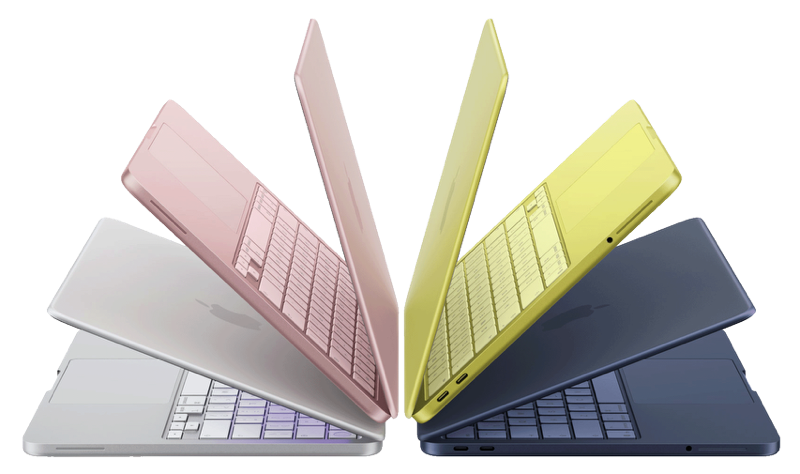
8GB of RAM isn't enough to process large images on its own, so you quickly dip into compression and then SSD virtual memory. It's the latter that's the real problem: the Neo's SSD is the slowest that Apple currently supplies, and is only available in 256GB and 512GB sizes.
As I note elsewhere, I do not consider 256GB SSD to be long-term usable, and that would be especially true if you're constantly spooling to it for virtual memory. So if you do decide to get the Neo, be sure to get the 512GB SSD version.
While it's true that you can run Lightroom and Photoshop on a Neo and that works, it also works more slowly as you start doing more sophisticated things. My general recommendation is that if the Neo appeals to you, get the base MacBook Air 13" instead. Yes, you'll pay US$600 more, but you get a faster SSD, more RAM, a faster processor, more cores (including GPU), a better display (P3 instead of sRGB), a better camera, Wi-Fi7 support, Thunderbolt 4 support, and longer battery life, all in a package that's virtually the same size and weighs the same! That's a lot of value you shouldn't be ignoring.
MacBook Air 13" or 15” (M5)
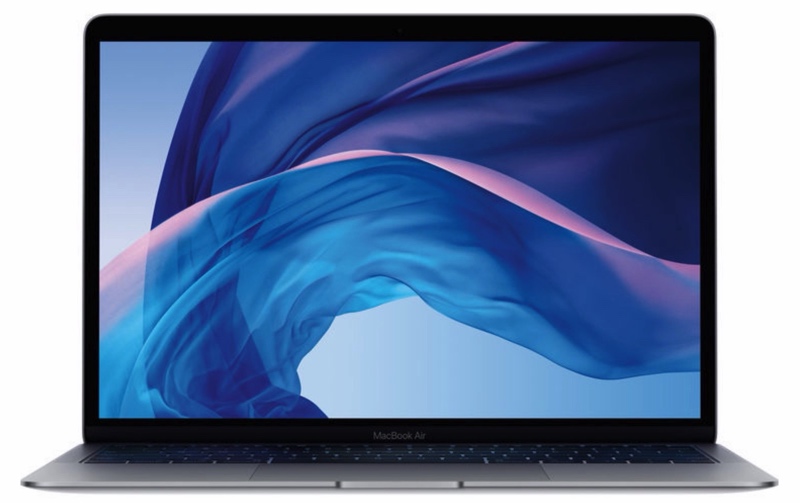
Intel processor versions are no longer available new from Apple in any Air model. That’s good, because it was near impossible to recommend the older Intel version to a photographer with its outdated, non-Retina display for a number of other reasons. All my complaints about the Intel MacBook Airs go away with the latest Apple Silicon models. The MacBook Air is near the low end portable in Apple's lineup, but surprisingly, even the US$1299 base 13” M5 model is highly competent for photographers (though I recommend you consider more memory).
The big claim to fame for the Air has always been "all day battery life." Apple is still advertising that, but be aware that to Apple that means about 18 hours of regular desktop type use. Start running the CPU aggressively with something like Photoshop CC and some AI plug-ins and that number will go down.
Basically any 16GB/512GB or better Air is a solid portable these days, and should handle moderate Photoshop use just fine, while demanding Photoshop work will still run okay. Moreover, the (M4 and) M5 models can now handle up to two external 5K displays (when the laptop is closed). Note that the Air gets discounted regularly from many sources. Moreover, at times I’ve seen very aggressive discounts on discontinued Air models: I was able to pick an M1 one up for US$599 on a one-day discount.
All the M3 and later MacBook Airs have P3-sized color gamut Retina display.
14” or 16” MacBook Pro (M5 or M6)
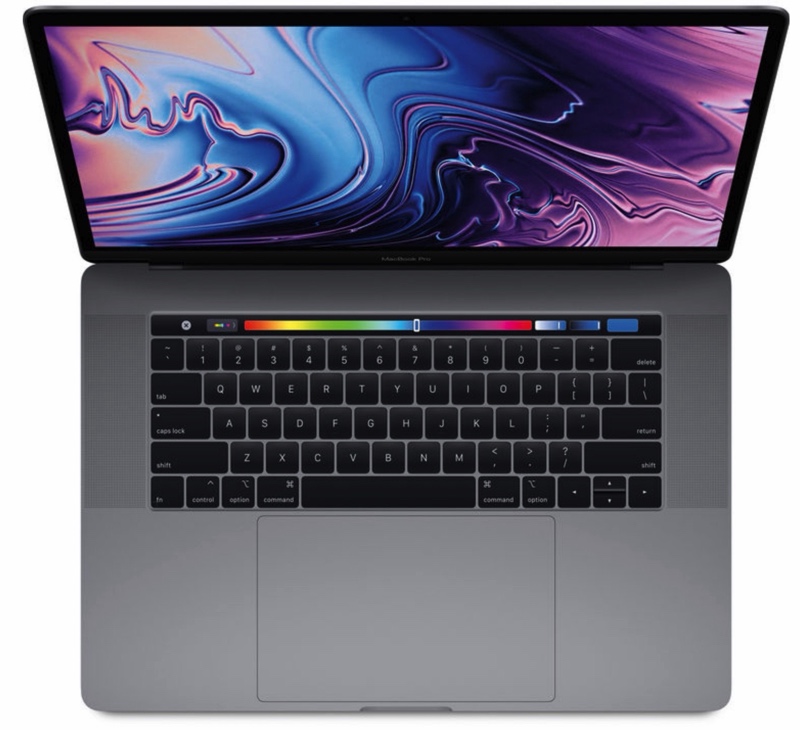
You may still find older 14” or 16” MacBook Pros available. If offered at the right price, they are excellent machines that you should consider if you need to step up from a MacBook Air.
However, now we have M5 Pro and M5 Max models (and one M6). Max versions are for those of you who want the best possible laptop experience (and I do mean best). The 14” M6 model basically remains unchanged other than the new processor. But the M5 Pro and M5 Max models now are PROLED XDR Display and wickedly upgraded:
- Brighter (2000 nit) OLED screen with considerably more contrast.
- The display is now touch-enabled, and uses a smaller camera notch for what Apple calls a Dynanic Island.
- Decreased weight from the previous models (13-15%).
- Faster SSD drives, and Thunderbolt 5 external ports.
- Wi-Fi 7, Bluetooth 6, and a number of other small, useful changes.
All MacBook Pro models support Thunderbolt 5 and can be bought with a non-reflective display (nano-texture). Battery life with the current generation improved a bit over the previous one, with several of them now promising up to 24 hours of video streaming on a full charge.
There’s not a dud in the bunch, from the 14” M6 to the 16” M5 Max PROLED XDR Display at the top. Be but aware that these can get quite pricey now, as you can add up to 128GB RAM and a 16TB SSD.
I can recommend all the MBP models. Which one you get should be dictated by how far you go beyond editing a single image in Photoshop CC in terms of taxing the system. Do you batch process images? Do you use a video editor, CAD program, or workstation type software? If yes to either, go higher in the lineup and skip the M5 base systems and consider both the Pro or Max with more RAM.
The 14" M6 model is particularly interesting. A 32GB/1TB 14" M6 is US$2399. That's plenty of horsepower for photographer, with some reserve for the future. You can go even higher than that with the M5 Pro or M5 Max chip models, but that's unnecessary unless you know you're running calculation intensive software that would benefit from the additional cores and memory options.
Mac Mini (M6)
Apple completely redesigned the Mac mini in October 2024, putting it in an incredibly small box with a ton of horsepower inside. Then in fall of 2026 we got some serious attention to the insides. The new minis are a little taller (2”, or 5cm) than the original, but takes up less desk space (less deep or wide, at 5 x 5”, or 12.7 x 12.7cm). For most folk, the mini is highly worth looking at for a basic desktop computer. Just be careful of one thing: by the time you add a monitor, keyboard, and mouse, you can manage to upgrade a mini to iMac price levels. Still, Apple is now packing a lot of power in a small box that's just a pound and a half, and that is highly welcome.
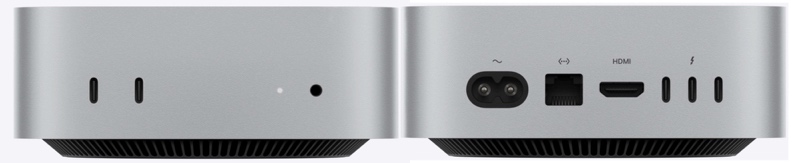
One thing to note up front is that the mini goes from four older Thunderbolt and two USB-A ports to three newer Thunderbolt and two USB-C ports. The change in case design in 2024 means that you may need all new mini accessories (such as something to replace the Satechi hub I used to recommend).
Like the other M6 models, you're limited to a choice of 16GB to 32GB of RAM for the base chip. SSD storage comes in 256GB, 512GB, 1TB, and 2TB options; skip the 256GB option. You have to opt for the M5 Pro chip to get 64GB and faster internal memory bandwidth in the mini, which I recommend for those who are looking to get longevity out of their new computer, or who are doing more compute-intensive activity (AI, video, etc.).
The current mini has no SD slot, but has Headphone, Ethernet, two front-facing USB-C 3.1 Gen 2 ports, plus three Thunderbolt 4 (lower models) or Thunderbolt 5 (higher models) ports and one HDMI 2.1 connection on the back. The little box can drive as many as three external monitors (one via HDMI, two via Thunderbolt).
I’d hazard a guess that for a desktop computer, most of you would get by just fine with a 32GB/1TB Mini. That’s a reasonable—for Apple—US$2499. I’d strongly suggest considering the M5 Pro 48GB/1TB version at US$2599, though; it’ll grow with you longer. If you need more expansion, the OWC miniStack STX is an excellent choice, though no longer really an aligned stack with the new, smaller Mini size.
Bonus: Apple doesn’t tend to talk too much about some of the deep technical details, but I thought I’d share two. The memory on the original M1 Mini had 68.25GB/s memory bandwidth, while the M4 Mini has either 120GB/s or with the Pro model 273GB/s memory bandwidth, and the latest models are still faster. Remember, I wrote that internal memory is one of the things that speed up these Apple Silicon Macs; well, guess what, just from the first to the fourth generation, even the same amount of memory has gotten as much as 4x faster. Meanwhile, the 16-core NPU (neural processing unit) has gone from 11 trillion operations a second to 38 trillion, more than 3x faster. Thus, in models such as the Mini, where you can get multiple generations still, opt for the newest generation if you can afford it.
iMac 24” (M6)
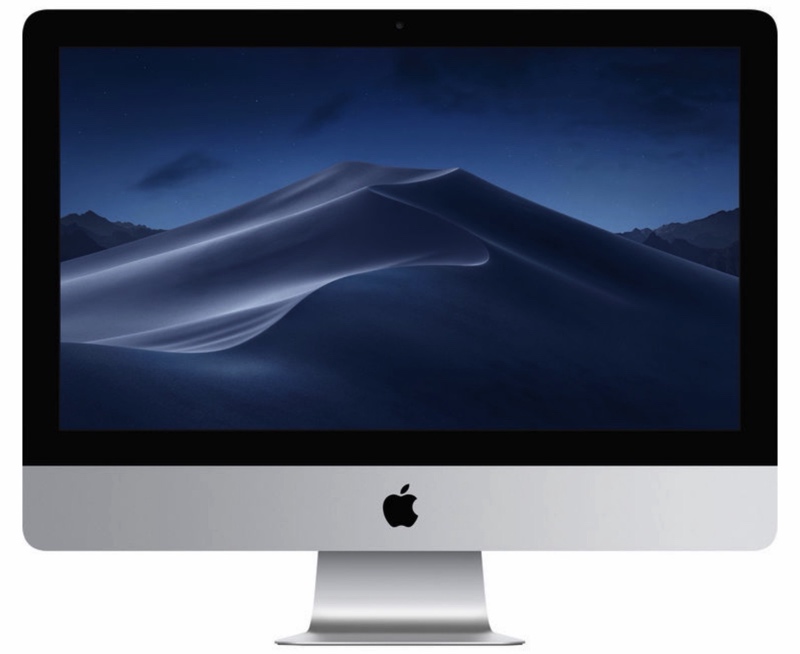
Unfortunately, you can’t opt higher than 32GB of RAM, which I suspect means that these models will have a shorter useful life than Macs that can exceed that. If you’re just into basic office apps, email, web browsing, and some casual photography, that won’t be a problem. But anyone getting heavily into generative AI, video editing and encoding, or who likes to keep dozens of apps open and running simultaneously might be served better by a different Mac.
Mac Studio (M5 Max or M5 Ultra)
When it came out in early 2022, the Studio turned a lot of heads. It looked a bit like a Mini on steroids, and to some degree, it is. The M2 chip (at the time) made this more obvious. Thing is, Apple loads up a lot of options on the Studio, so you can quickly find yourself paying huge amounts of money for something that’s likely more than you need today (even with that original M2 chip!).
With the February 2025 announcements, we got an interesting choice: M4 Studios that are considered the “base” versions, and M3 Studios that are the “top end” versions. This has to do with the difference between the Max (M4) and Ultra (M3) chips. The Ultra was really two M3’s bonded together in a way that both chips work as one. This makes for a massively powerful machine, well beyond what most photographers will need in the foreseeable future.
In 2026 the Studio once again morphed on the inside, now with either an M5 Max or M5 Ultra chip.
Future proofing your gear is a good idea, but be very careful when configuring a Mac Studio, as you can get carried away and start specifying machines you probably don’t really need. I’d say that the “sweet spot” right now for Mac Studio is in the base M5 Max (US$2799 with 36GB/1TB) to low-range (US$3799 with 64GB/1TB). Be careful of opting into the M5 Ultra and lots of memory/SSD: it gets costly quickly. A maxed out M5 Studio (256GB/16TB) is US$29799!
You’ll note that Apple took the 5K iMac Retina and iMac Pro off the market. The reason is that a Mac Studio with the Apple 27” display is simply a better computer, though not all-in-one like many prefer. Given the small size of the Studio “box”, I’d say that wanting a large screen all-in-one is now a bit overkill. Apple tempts you to over configure a Studio with lots of additional core/memory/SSD options, some of which change the front USB-C ports to Thunderbolt, and so on. Again, be careful not to get sucked into that if you don’t absolutely need it now (or in the foreseeable future).
So, strongly consider a mini. If for some reason a mini doesn’t quite reach the level of what you think you need, then the lower-to-mid M5 Max Studio levels are where you should look next.
I’d only get a top level M5 Ultra Studio model now if I was doing serious video editing that involved a lot of transcoding or final encoding, or if I were trying to fully max out a current Apple Silicon computer in order to get more life span out of it long term. But that can add up in dollars quickly. Even a base Studio M5 Ultra with 96GB/2TB is US$5999 (and you still need a monitor).
Additional Advice
If you really need more steering:
- On the desktop, it’s hard to beat the maxed out M4 iMac 24” (32GB/2TB). The M1 version is what I bought my mom, and it hasn’t balked at anything she (or I) have thrown at it, and the M6 model is just better, better, better. At a totally maxed out (Nano-texture screen, etc.) US$3299, I still consider the iMac to be a bargain, because it includes everything, including a darned good monitor. Yeah, I know it’s not a bigger 5K Retina display (it’s a smaller 4.5K, boo hoo). If you need more memory or processing power, you should go to a mini M6 (or perhaps a mini M5 Pro, or even a Studio M5 Max, in that order), but then you're on your own for keyboard, mouse, and monitor.
- For portable use, a near maxed out 13” M6 MacBook Air (32GB/2TB) is US$2499, and tough to beat. I’ve hammered on my M2 Air and it holds its own. True, my nearly maxed out M1 14” MacBook Pro could clearly beat it for serious batch processing sessions, video encoding, and a host of other CPU/GPU intensive tasks, but I’ve been surprised at how well even the older M2 Air holds it own in basic Lightroom and Photoshop work, even in base form. The new M6 ones will be even better. If you’re using something simpler for your images, such as Apple Photos, consider this advice doubled. If you need more memory or processing power, you should probably look at the 14" MacBook Pro, though you can start optioning that one to the point where you eventually go over US$10000!
- Lightroom and Photoshop may need different things. Building previews in Lightroom Classic is highly dependent upon GPU cores. The more you have, the faster previews will be created. Meanwhile, Photoshop with many layers active on high megapixel counts requires more memory to get faster performance. It's important to understand what your software wants before making memory/core decisions.
Other Things to Consider
So, a few things I've glossed over that need more commentary:
- Pricing. Apple's pricing used to be something people complained about ("you can find a PC that's cheaper"). Apple has always been a high-quality provider (in pretty much every way), but the change to Apple Silicon processors actually had an interesting effect: Macs got less expensive, yet they got clearly better than more expensive Intel models! Having used M1- to M5-based Macs, I can say this: my M1 14” was a far better laptop than the maxed out Intel-based MacBook Pro 15" it replaced, and it cost less. Moreover, you might have noticed that places like Amazon and B&H actively discount various models (usually for short periods, but this is becoming more prevalent; if you have patience, wait for a discount on the model you want to appear). I generally regard the M1, M2, and M3 Macs as still a good return for cost these days, as long as you don’t try to max them out with the insane Max and Ultra chips that the TSMC is producing for Apple these days. Despite the advances of the M5 and M6 Macs, the lineup still seems very reasonably priced, even after Apple had to adjust pricing upwards due to AI industry hogging all the memory and storage. The same thing is now happening to Windows machines, so Apple still is providing excellent bang for the buck.
- M1, M2, M3, M4, M5, or M6 processor. Yes, all six are fast and noticeably so compared to the Intel Macs. Plus they're low power (which makes the MacBooks run for insane periods of time for most work). And sophisticated (built in multiple GPUs and machine learning components speed up a lot of work beyond what the CPU can do itself). The real benefit the Apple Silicon has, though, is that it doesn't have to talk to external RAM (RAM is built alongside each processor, and it talks to the processor faster). There's no external bus controller getting in the way of fetching memory. This makes the M1/M2/M3/M4/M5/M6 Macs really fast when the memory being worked on is in the processor (the reason why I suggest that you max out memory first and foremost before spending on other options). That, coupled with a very fast internal SSD means that even virtual memory—which you're almost sure to trigger with lots of huge photo files open at once—seems fast. There are a few minor differences other than speed/cores/RAM between the various M generations. For instance, the M2 through M5 Macs tend to support Wi-Fi 6 while the M1 ones were Wi-Fi 5, and the M6 ones are now Wi-Fi 7. Most M2 and later Macs support as many as three external monitors, while all the M1 Macs seem to be limited to two. I wouldn’t put too much weight into those smaller things, though. What is different is that each generation of M has increased speed at which all the CPU/GPU/NPU components run, so if you’re looking for the fastest Mac at any equal configuration level, it’s going to always be an M5 or M6.
- How many cores? Apple makes a big deal about core counts (CPU, GPU, NPU). Let’s take those in inverse order: most of the Apple Silicon Macs have the same number of NPU cores (16), though a few with the top chips have doubled that. The big difference in each generation of M has been that the NPU gets faster. So you have starter (M1), fast (M2), faster (M3), and fastest (M4/M5/M6). Not a lot of software outside of Apple’s takes advantage of those NPU cores, though, so don’t get hung up on which NPU you have. CPU cores range from 8 (4 performance, 4 efficiency) to 24 (16 performance, 8 efficiency), and clock speed has (usually) increased over each generation. Performance cores are the primary driver of processing speed. While more is better, if you’re a one-app-at-a-time type and not dipping too hard into Photoshop’s deeper features, you might not notice the extra cores. Over time, however, I expect more programs to get efficient at multithreading and using all those performance cores, so if you have the budget, bump up a step with your CPU core choice. Don’t stress on this, though. That’s because GPU cores are where you should pay the most attention, as more and more software is using them, and more cores is better for AI-type tasks. The minimum you’ll get is 8, but some models currently go all the way to 60 GPU cores. The higher number will definitely benefit graphics and AI processing. Again, though, I’d add RAM before CPU/GPU/NPU, so if you can only afford another US$200 et.al., put it in RAM first.
- Thunderbolt 4 versus 5. The M4 generation introduced Thunderbolt 5, but there are still a few of the lower cost Macs using Thunderbolt 4. I'd say don't get too worried about that difference unless you're trying to future proof a system you know you'll expand (more monitors, faster drives). The big deal here is 2x the speed, but you need devices and cables that are also Thunderbolt 5 compatible to get that, and not that many are available as I write this.
Wrapping up
Yeah, the above is a lot to ponder, so let me try a different approach. Here's the priority that you should consider when trying to pick a configuration of an Apple Silicon model:
- Memory first. Adding more RAM has significant performance impacts. 16GB is okay, 32GB suitable for most things you'd ever do, and anything above that requires a reason to add.
- Chip second. Adding more cores (or bumping up to Pro, Max, or Ultra) is the next most significant choice for performance. Particularly if they're performance or GPU cores.
- SSD last. Assuming you start with enough for macOS, your apps, and caches, you can later add storage externally. Don't underestimate your internal drive needs, though.
The other thing that sometimes holds up potential Apple Mac updaters is the retirement of Firewire (and now Thunderbolt 2, Thunderbolt 3, plus the old style USB-A ports), coupled with the need for high-speed external drives if you need lots of storage. Most of us photographers need plenty of drive space.
Don't fear moving from Thunderbolt 2 to 3, 4, or 5: it's a cable dongle, worst case. And at this point, Firewire drives are becoming harder and harder to find (and are no longer supported in macOS Tahoe and Golden Gate), and certainly don't perform at the levels of Thunderbolt 3 or 4, let alone 5, but if you need Firewire it's still available by just coupling two cable dongles together (as long as you don't upgrade to Tahoe).
The typical hard drive answer for both Mac desktop and laptop is a USB 3.2, Thunderbolt, or RAID addition. Or two. Or four. The temptation is to cheap out and just buy one external enclosure and mirror the drives in it. I say no. If you’re going for performance, buy two external enclosures and mirror one on the other. You can then also choose between RAID 0 (performance) or RAID 1 (additional mirroring) depending upon your paranoia level. How did I personally get to four RAIDs? Paranoia and video, in combination.
I've been using RAIDs from a number of companies. The best of the bunch so far are the ones that Apple themselves sell: the Pegasus (comes in four, six, and eight bay configurations) and the LaCie 1Big or 2Big.
On my work Mac I've tended to have two main RAIDs: one running in RAID 1 (mirror) for application and photo data, and the other running RAID 1 for video, though I'm in the midst of changing that as I continue to upgrade gear. The RAIDs are automatically backed up by Carbon Copy Cloner, but each individual RAID with data is also a mirrored setup to another RAID pair, so it’s a redundant backup. Plus, of course, I have a Time Machine drive and a backup of the SSD, plus off-site backups. Yep, a lot of cables, and a lot of copying going on in the background (mostly done automatically in the office overnight thanks to Carbon Copy Cloner).
The good news is that with the Thunderbolt connection the latest iMacs and MacBook Pros use, you can daisy-chain drives, so that cable situation is well under control. The real issue is all the power cables for the RAIDs, all of which should to go to a UPS, which in turn should be plugged into a whole office surge protection system.
I sure miss all those internal drive bays of the old Mac Pro (seven if you used third party tools to create them).
When Steve Jobs returned to Apple after NeXT, he drew a chart on a whiteboard that basically defined four computers Apple should make. Apple is still really following that chart. Here's my current version:
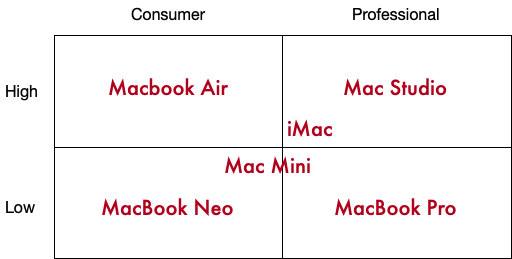
Finally, a word about considering your configuration before deciding upon a model. You want to pay attention to what physically connects to what, and via which type of connection. Photographers often end up with very complex desktop systems, and the iMac now only has four back-facing USB/Thunderbolt ports and the Mini five total (three back-facing, two are on the front). The good news is that Thunderbolt connections can pass through (assuming the monitor, hub, or drive supports that), so you can minimize cables snaking out of the computer itself. For example, here's a configuration I did for someone recently for a Mac Mini (M3):
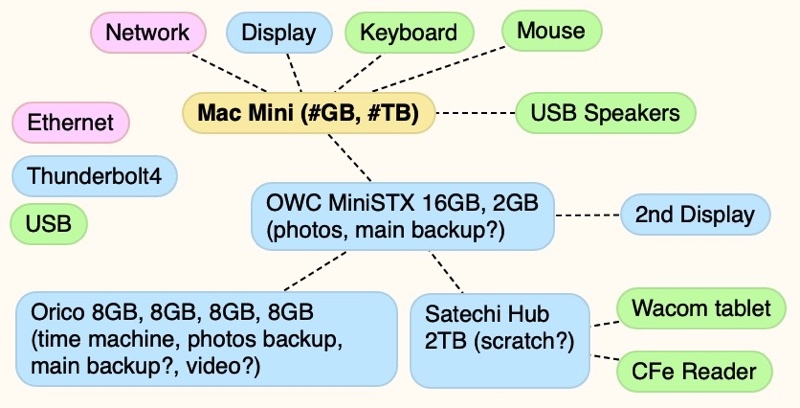
In this case the MiniSTX passes through Thunderbolt to the Orico and Satechi. This isn't the only way that all these things could be connected, and there are things to consider when you decide what to connect to what (some displays are also hubs, for instance). But you should have an idea of what your configuration might look like before you decide which Mac to buy. Many photographers opt for a Studio over the Mini simply because the Studio has more direct connections (and a few things built-in, such as the SD reader).
I hope this article helped you with your Mac decisions. Let me know how I can improve it.